
How to Download Your Performance Report from Google Search Console
Google Search Console (GSC) is free and full of useful data, but getting that data out of it is not always obvious. The Performance report holds the numbers that actually matter for SEO: what people search, which pages they land on, and where you are losing clicks. Below is how to export it properly, what the export contains, and where its limits are.
Why you should export your GSC data
The web interface is fine for a quick glance, but an export lets you sort thousands of rows, filter, join pages to queries, compare months, and run a real audit. If you plan to act on your data, export it first. A spreadsheet you can sort beats a dashboard you can only scroll.
What the Performance report contains
Four metrics, sliced several ways:
- Clicks
- Impressions
- Click-through rate (CTR)
- Average position
Those metrics are broken down across several tabs: Queries, Pages, Countries, Devices, Search appearance, and Dates. Together they tell you both what is working and what is only one small fix away from working.
How to download it, step by step
Step 1: Open the Performance report
Log in to Google Search Console, pick the property you want, and open Performance in the left menu. Make sure you are looking at the property you expect, since many people have several verified sites.
Step 2: Set the date range
Use the date selector at the top. For comparisons, use the Compare tab and pick a sensible window such as the last 3, 6, or 12 months, or last month versus the previous one. A single full month is usually the cleanest unit for an audit.
Step 3: Choose the tab you need
Click through Queries, Pages, Countries, Devices, and Search appearance. Each tab reshuffles the same four metrics by a different dimension. For SEO work, Queries and Pages are the two you will use most.
Step 4: Click Export
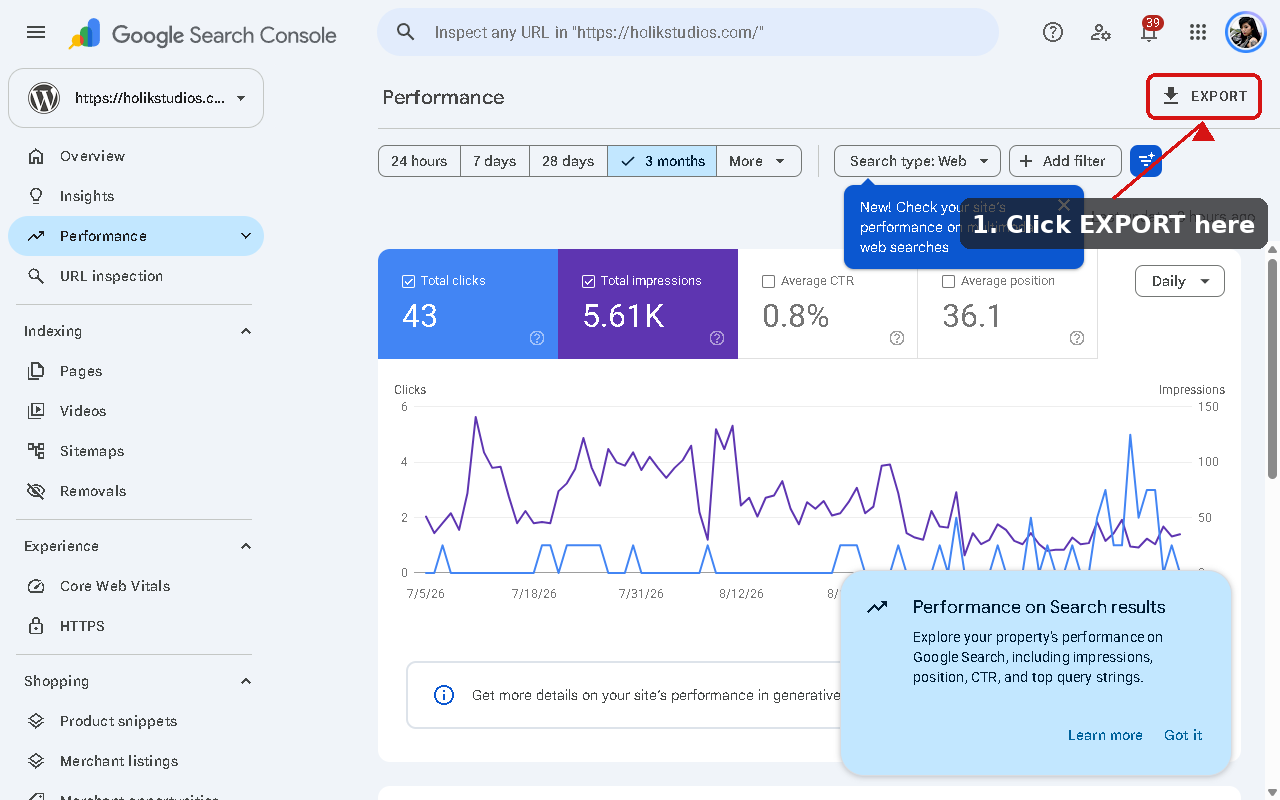
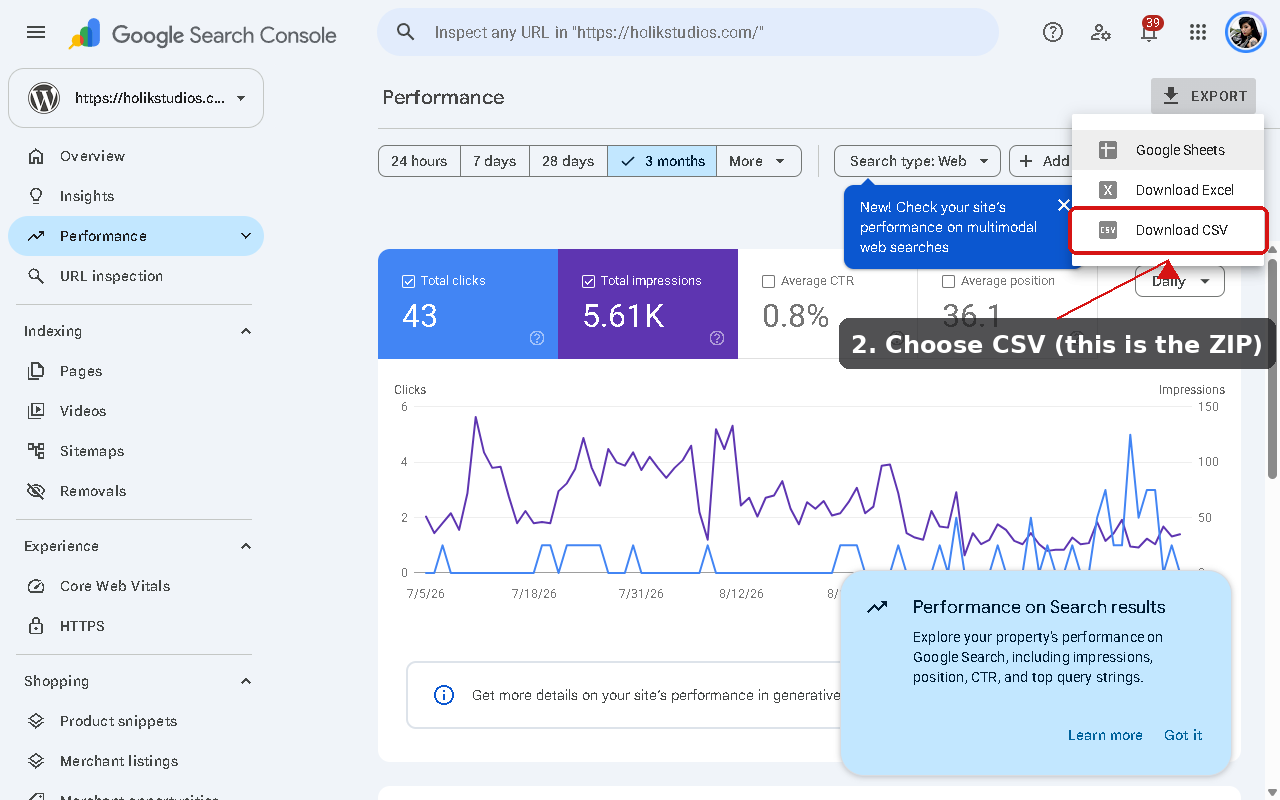
First open the Performance tab: in the left menu, click Performance. Then click the Export button in the top right of the report. You get these options:
- Google Sheets
- Download Excel
- Download CSV
If you are auditing a site, choose Download CSV. Despite the CSV label, it saves a ZIP archive containing one CSV file per tab (Queries, Pages, Countries, Devices, Search appearance, and Dates), which is exactly what an audit tool needs.
Keep the file name and the date range somewhere safe so you can compare this month to the next.
The 1,000-row limit (and why your totals will not add up)
There is a catch worth knowing before you stare at a mismatched spreadsheet. GSC exports are capped at roughly 1,000 rows per tab, and some queries are grouped or hidden for privacy. That means the totals in your export rarely match the totals shown in the dashboard.
This is normal, not an error. If you need the complete dataset with no row cap, the only reliable route is the Search Console API, which returns the full table programmatically. For most audits, the ZIP covers 95 percent of what you need; the API matters when you want the long tail or a complete month-over-month history.
What to do with the export
Do not let the ZIP sit in a downloads folder. The value is in prioritising what to fix, and that is exactly what a GSC audit does: it finds the queries stuck just outside the top results, the pages with high impressions but almost no clicks, and the internal links worth strengthening, then ranks them by effort versus return.
That is the whole point of our free Google Search Console audit. Drop the ZIP you just downloaded and get a prioritised report of what to change, in plain English, without connecting anything to your account.
FAQ
Why do my export totals differ from the dashboard?
Because of the 1,000-row cap and privacy grouping. The export is a very good sample, not a perfect mirror.
How far back does the data go?
GSC keeps about 16 months of history. Export what you need before it slides out of the window.
Can I export more than 1,000 rows?
Not from the interface. For the full dataset you need the Search Console API.