
Blender hides a full Python environment behind one tab. Switch the workspace to Scripting and you get everything you need: an editor for longer scripts, a console for quick experiments, and a place where Blender reports what your code did.
Nothing to install. No external editor, no terminal, no environment to configure. The same Blender that models your scene runs your code.
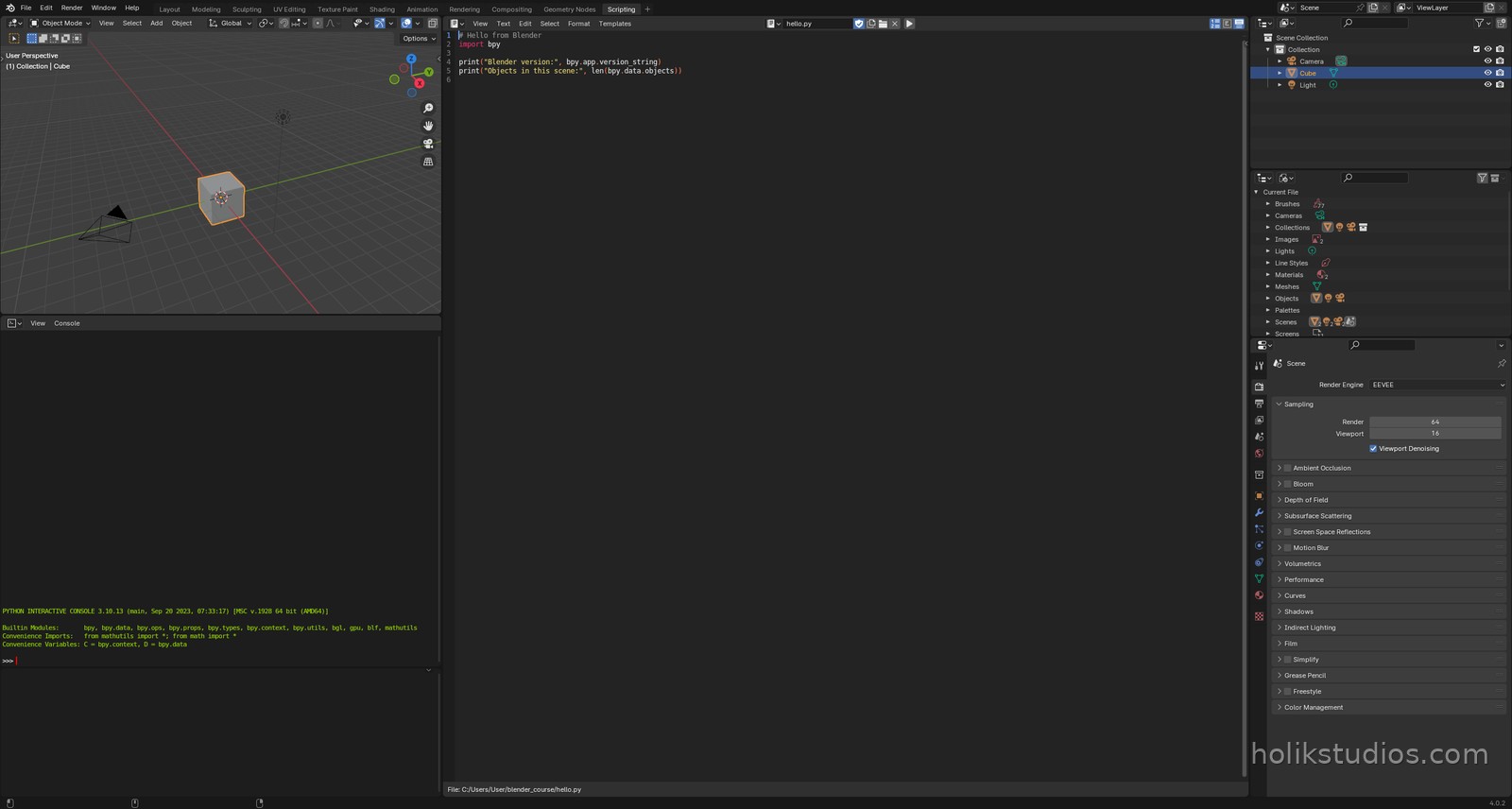
The three places that matter
- Text Editor (top): files with your scripts. This is where real work happens. A file opened here behaves like a normal document: you can save it, reopen it, and keep it next to the .blend file.
- Python Console (bottom): a live prompt. Type one line, press Enter, see the result immediately. Perfect for testing an idea before you commit it to a script.
- Info bar (top, next to the menus): Blender echoes there what it just did, including errors. If something fails, this is the first place to look.
Running a script
Open a file in the Text Editor and press Alt+P (or use Text > Run Script in the header). Blender executes the whole file from top to bottom. If your script prints anything, the text appears in the console, which is exactly how you check that things worked.
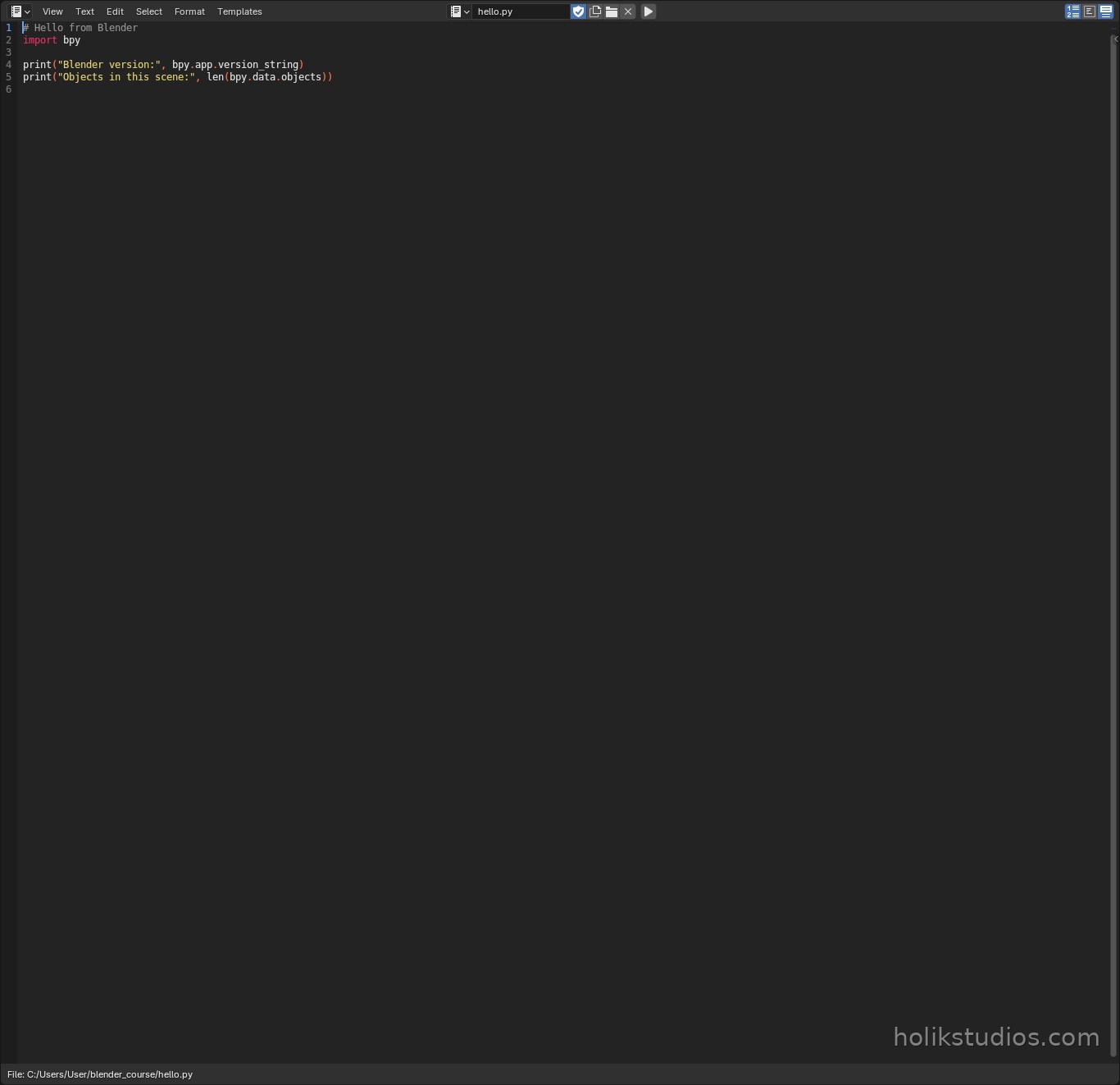
Here is the smallest useful script you can write. It imports Blender’s Python module and asks it two questions:
hello.py
# Hello from Blender
import bpy

print("Blender version:", bpy.app.version_string)
print("Objects in this scene:", len(bpy.data.objects))
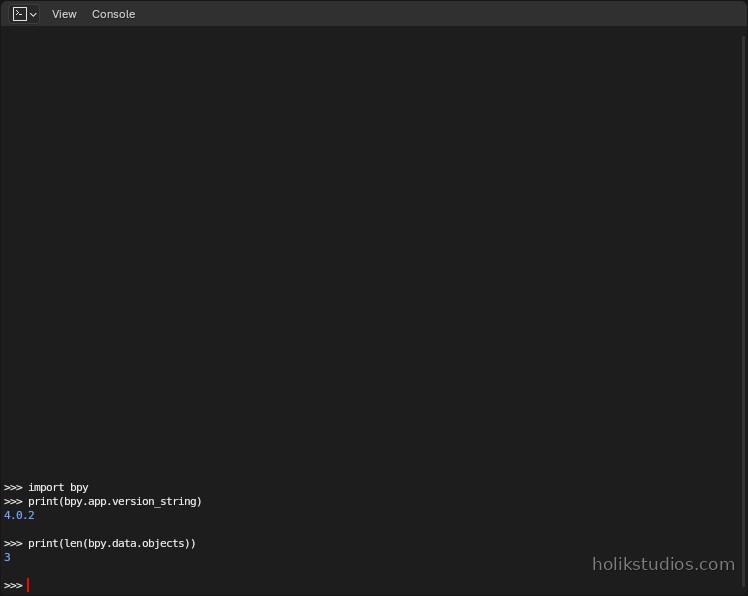
The console: fastest way to check something
You do not need to save a file to test an idea. In the Python Console you type the line, press Enter and the answer appears right below it. It is the same Python, the same objects, the same scene. Try it: type import bpy, then print(len(bpy.data.objects)).
If something goes wrong
Errors are normal and they are not a sign that you broke Blender. Blender reports them in the console with a red traceback that names the line that failed. Read the last line first: it usually says exactly what was wrong. We will practice this on purpose in the next lesson, because learning to read an error is a skill, not a punishment.
Now that you know where the code lives, let’s write and run your first real script.